
Invite Existing Employees
Before You Get Started
🎉 Ready to launch?
Before sending invitations, we recommend checking in with your Worknice Account Manager. They can share best practices to help ensure your team has a smooth Day 1 experience.
Getting Started
To invite your existing employees:
Open the People Directory.
You should see your employees listed with the status Draft — these are people who have been imported (for example, from payroll) but not yet invited to join Worknice.
Sending Invitations
Individual invitation
From the People Directory, access the person you wish to invite.
Look for the Invite banner at the top of the page.
Click Invite.
Enter the employee’s preferred email address.
Send the invitation.
Worknice will email the employee a secure link to activate their account.
Bulk invitation
Invitations will send to people who have a pre-created login that has not yet been sent to the user. Haven't done this? Contact support and they can bulk invite your workforce for you.
From the People Directory, select, using the checkboxes, the people you want to invite.
From the bulk action menu, Click Invite.
Send the invitation.
Worknice will email the employee a secure link to activate their account.
What Will Employees See?
When an employee clicks the invite link, they’ll be prompted to create their Worknice account.
Because they are existing employees, they’ll typically only be asked to:
Set their password or establish SSO
Confirm or update their profile information
Take any set actions; acknowledge policies, fill in forms, supply certificates etc.
Let Your Team Know
It’s a great idea to send a company-wide message letting everyone know what to expect. Here’s a sample you can use or adapt:
Subject: Your Worknice Invitation - Recently Sent
Hi everyone,
Great news! Our new HR system, Worknice, is now live. You should have received an email with a link to set up your account. If you haven’t seen it, please let me know and I’ll resend it.
Worknice will be the home of all our HR information, including leave requests, employee records, policies, contracts, and more. It may take a little time to get used to, but it’s designed to make things easier for everyone.
Thanks in advance for your patience as we get started. If you need help, there are plenty of support resources available inside Worknice.
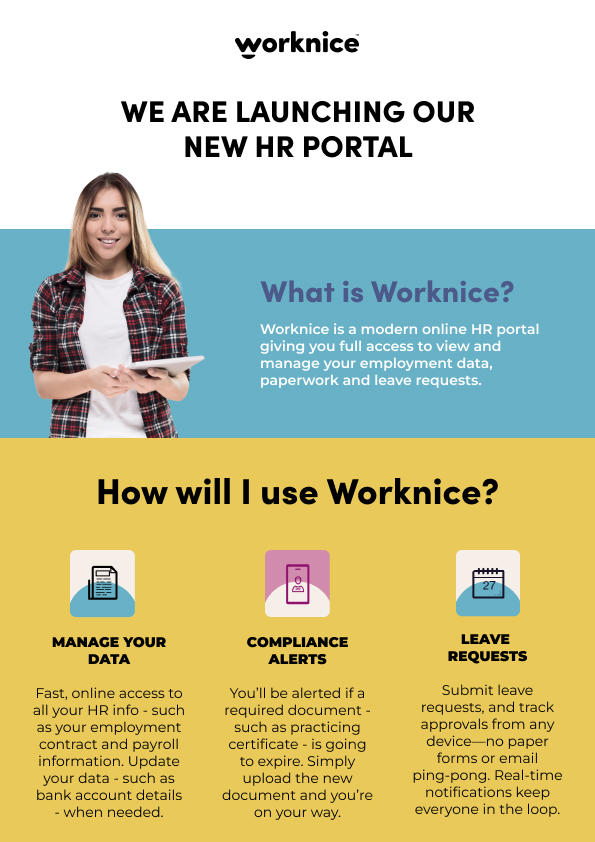
Launch flyer template:
You’re All Done!
Your employees are now invited and ready to get started in Worknice.
If you have any questions, please reach out to our support team at help@worknice.com or through the help section within Worknice.