
Connecting Worknice with Zapier
Automate workflows and connect Worknice with thousands of other tools.
What Is Zapier?
Zapier is an automation platform that connects your favourite apps and moves data between them automatically — no coding required.
With Zapier, you can connect Worknice to thousands of tools your team already uses — including HR, payroll, recruitment, communication, and compliance systems — to streamline processes and reduce manual work.
What Is a Zap?
A Zap is an automation workflow in Zapier.
Each Zap follows a simple rule:
“When this happens, do that.”
When one event occurs in one app, Zapier automatically triggers an action in another.
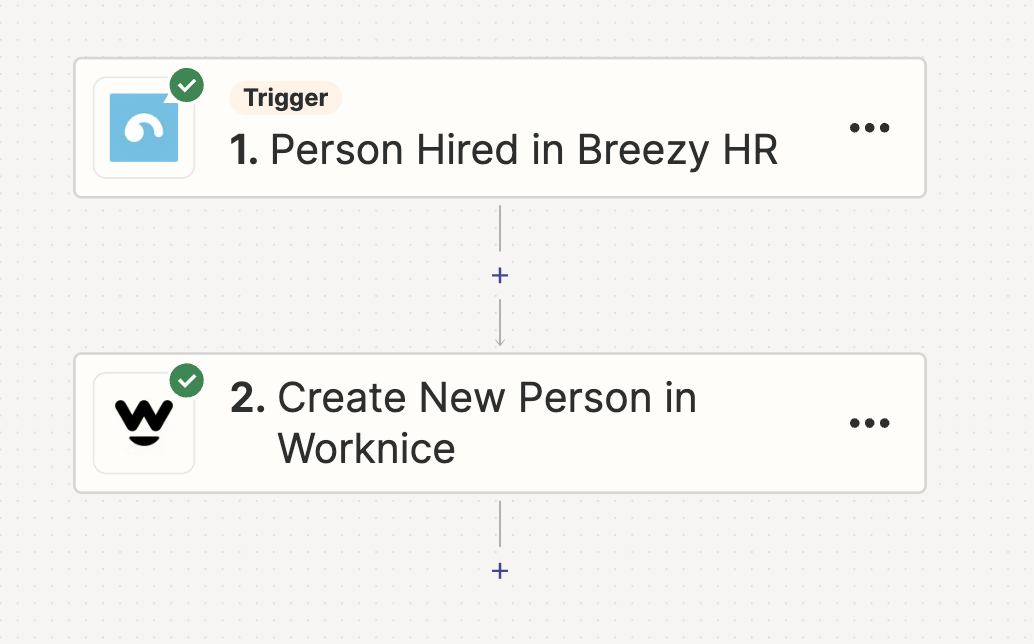
For example, when a new hire is created in your recruitment software (like Breezy HR), Zapier can automatically add that person to Worknice.
👉 Learn more about Zapier basics
Triggers and Actions
Every Zap consists of:
A Trigger: The event that starts the workflow.
An Action: What happens next in another app.
For example:
Trigger: A person is marked as Active in Worknice.
Action: Create a task in another tool, send a Slack message, or update your payroll system.
Popular Worknice Automation Examples
Here are a few common Zaps you can create with Worknice:
Automatically add new hires from your recruitment software into Worknice.
Sync new people from Worknice into rostering, LMS, or engagement tools.
Create custom onboarding workflows with scheduled tasks and reminders.
Automatically request new certificates for expiring licences.
Send custom welcome emails to new hires.
Create Slack or Teams alerts for your People & Culture team, such as:
Upcoming new hire alerts
Completed onboarding notifications
Expiring certificate or contract reminders
Approved paperwork alerts
Getting Started
Follow these steps to set up Worknice in Zapier:
Subscribe to Zapier
Sign up at zapier.com/sign-up.
Worknice has no commercial arrangement with Zapier.
Access the Worknice Integration
Click this invitation link to access the Worknice Zapier app.
Generate an API Token
Go to dev.worknice.com.
Select the API Tokens tab.
Copy your token — store it securely!
Lost tokens cannot be retrieved or reissued.
💬 Need help? Contact us at help@worknice.com.
Helpful Zapier Resources
Explore More Integrations
Worknice connects with hundreds of apps to centralise data and streamline workflows.